Further Information: Sessions & Events
With the introduction of version 2.2, TopMod QA has introduced the concept of Sessions and Events. Sessions represent a container for all recordings and other events captured as part of a users test session. Events represent everything that takes place within the Session. The aim of this is to make the process of using TopMod QA more accommodating to the different scenarios encountered by testers every day.
Types of Event
Recording

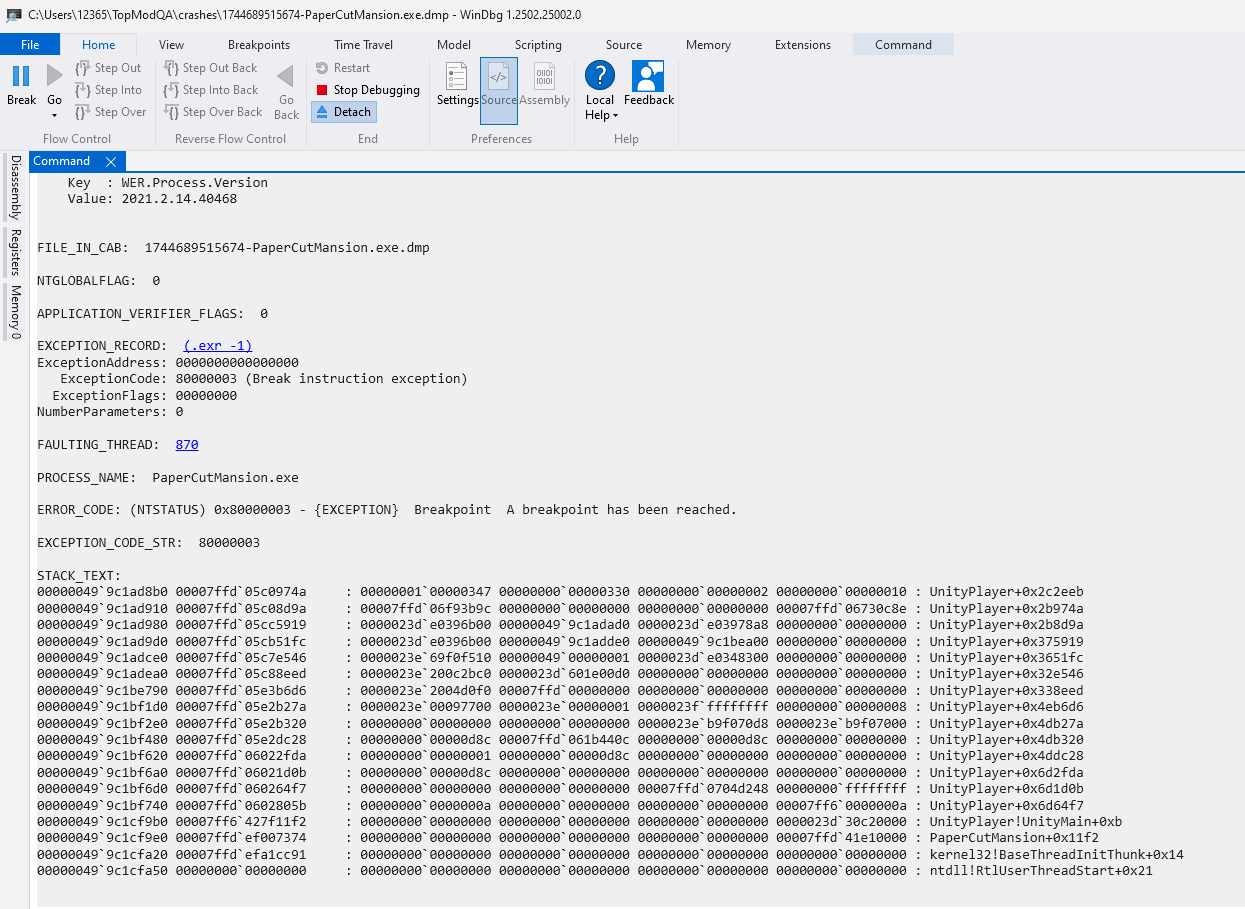
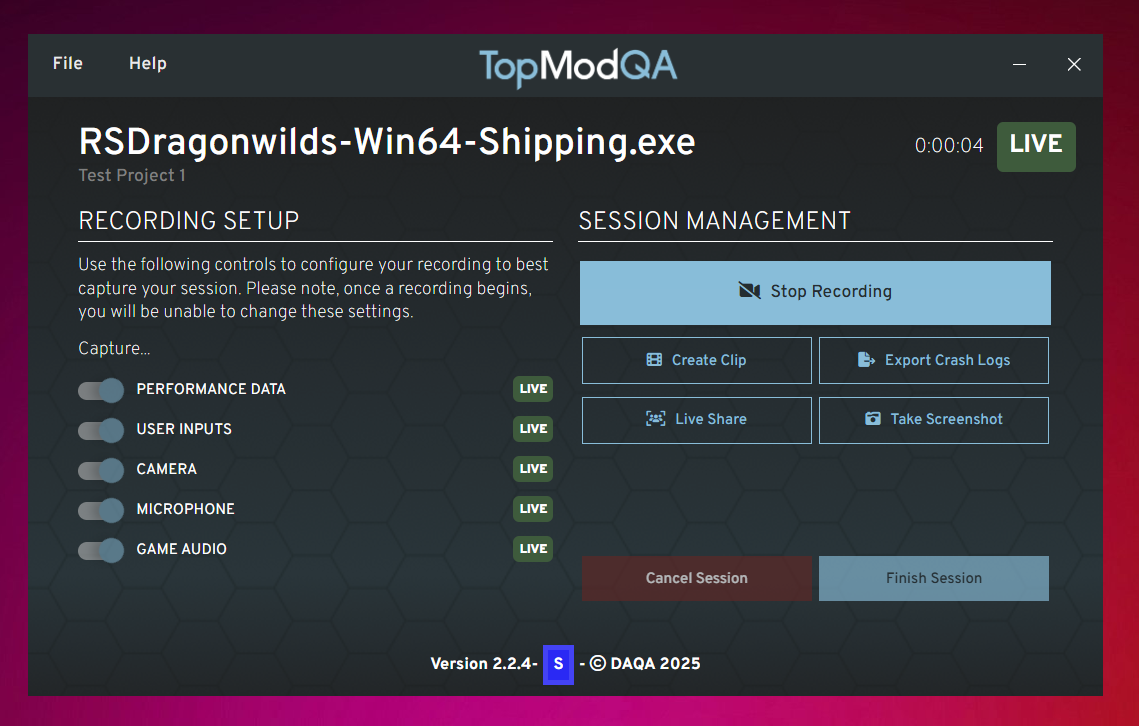
A Recording in TopMod QA is the main recording that runs whilst you test a game. You start this within the Recording App by clicking to "Start Recording" and features all of the inputs you have selected to capture in the "Recording Setup" panel.
Depending on the nature of your Session, you may not want the longer recording attached to the Event but this can be extremely useful if you want to give feedback to the Development team or capture the reaction of the tester whilst they play a game.
Screenshot

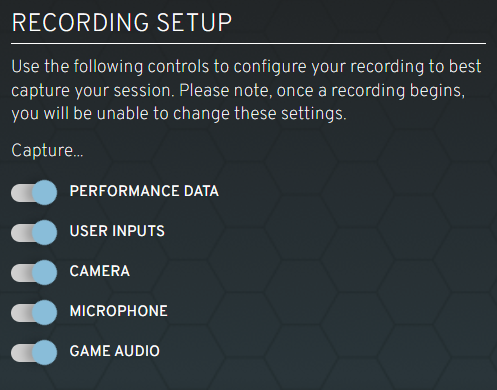
A Screenshot can be taken at any time once the Session has started in the Recording Application. It captures the full resolution of the target application (game you are testing) and is viewable inside the Dashboard once it's been uploaded.
Clip

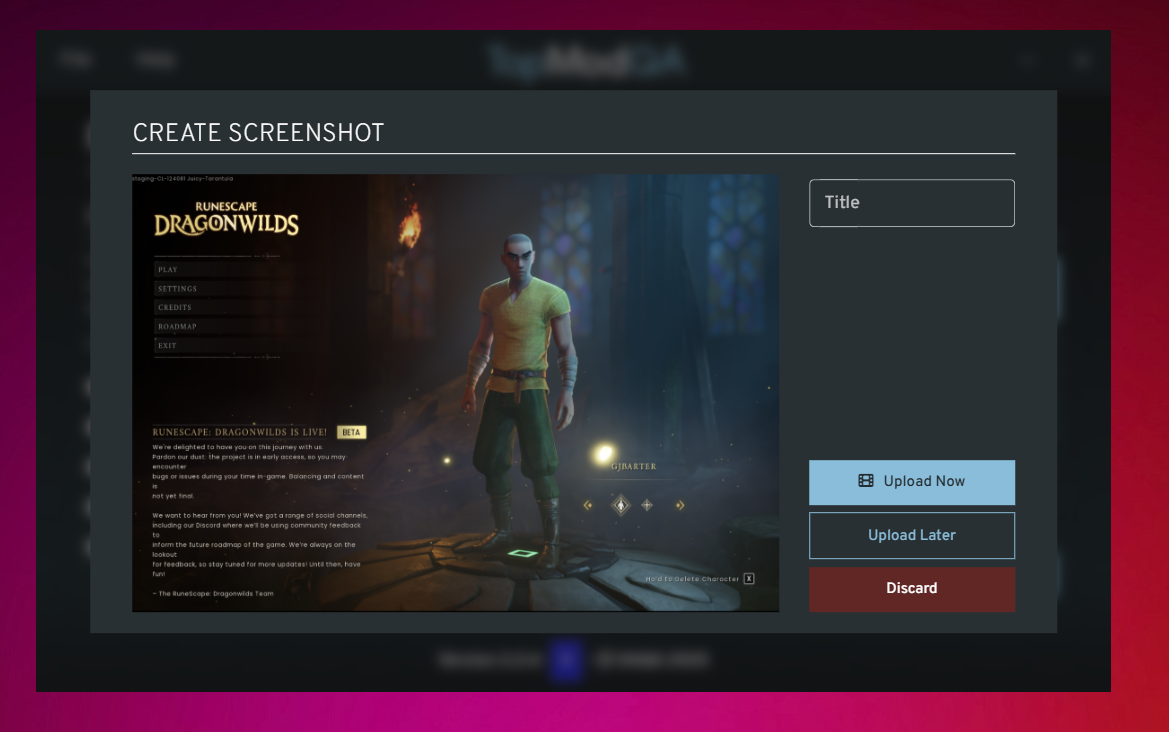
A Clip is a shorter recording than the main Recording Event detailed earlier and is specifically used if the tester captures something during their Session that they want to share with others easily. It is smaller in length than the main Recording event.
Live Share
Not Viewable in Dashboard
Should at any point the tester want to share their gameplay screen with a colleague, they can utilise the Live Share Event functionality. By clicking the Live Share button in the Session Management panel in the Recording App, the tester is given a URL to share with another person. Once the other person clicks that URL, they are able to view the screen of the tester and talk directly with them.
Please note, Live Share is only available for direct communication with one person, multi-viewers is not supported yet.
Export Crash Logs
Not Viewable in Dashboard
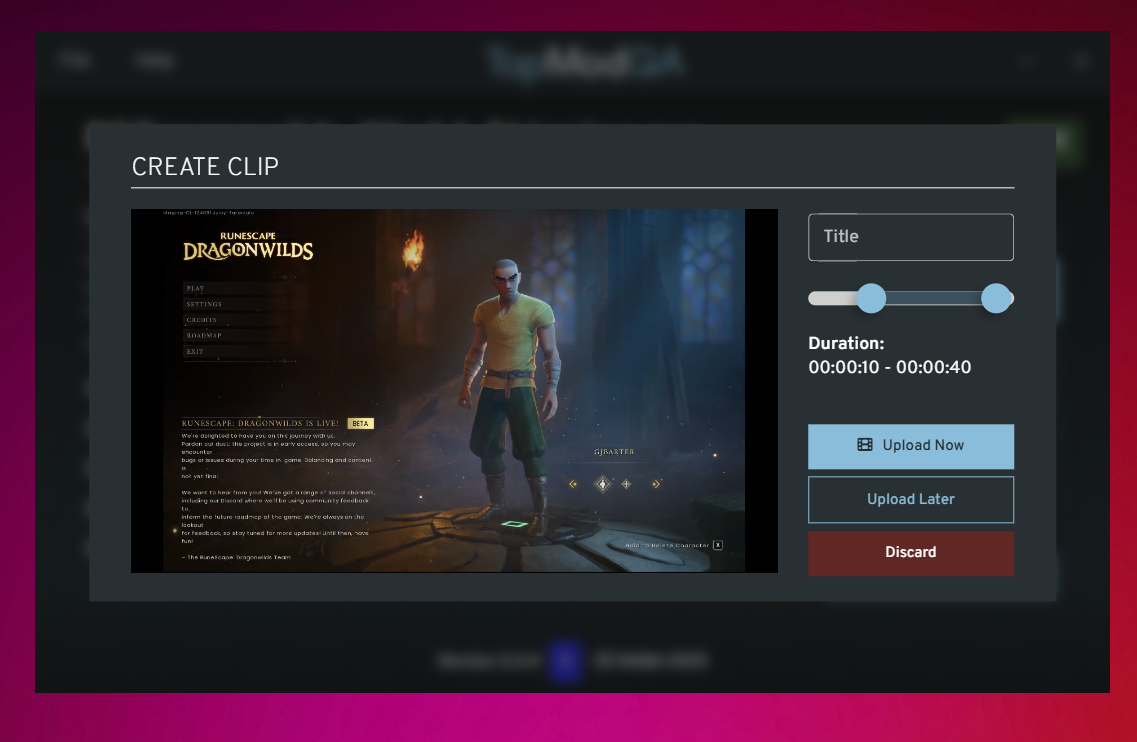
Should the tester encounter a crash inside the game they are testing, they can immediately click the "Export Crash Logs" button in the Session Management section of the Recording App. This will generate the crash logs for the target game and save them to the Save Location set in the Settings page.
The output of the Export Crash Logs function acts as a memory dump similar to the type of feature found in Visual Studio. An example of the output can be found below.