
First Time User Guide: Session Viewer & Dashboard
As outlineda incontinuation of our latestFirst releaseTime announcement,User TopModGuides QA'sseries, versionthis 2.2article releaseprovides includesa thestep launchby ofstep process on how to find Sessions in the TopMod QA dashboard.dashboard and view the various Events captured via the Recording application.
As a recap, TopMod QA has two applications as part of its service. The dashboard's aimfirst is to become the natural extension of the native recording application,application athat placeis installed onto the testers machine and the other is the dashboard which is used to goview tocaptured reviewsessions. andThis sharearticle is focused on the footagedashboard, beingif capturedyou within the application.
Torequire help youwith getgetting started with this new part of TopMod QA, we have created the followingrecording guide.application, Shouldplease youclick find it easier, we've also recorded a walkthrough of the following areas in the video below:here.
User Guide
1. Login
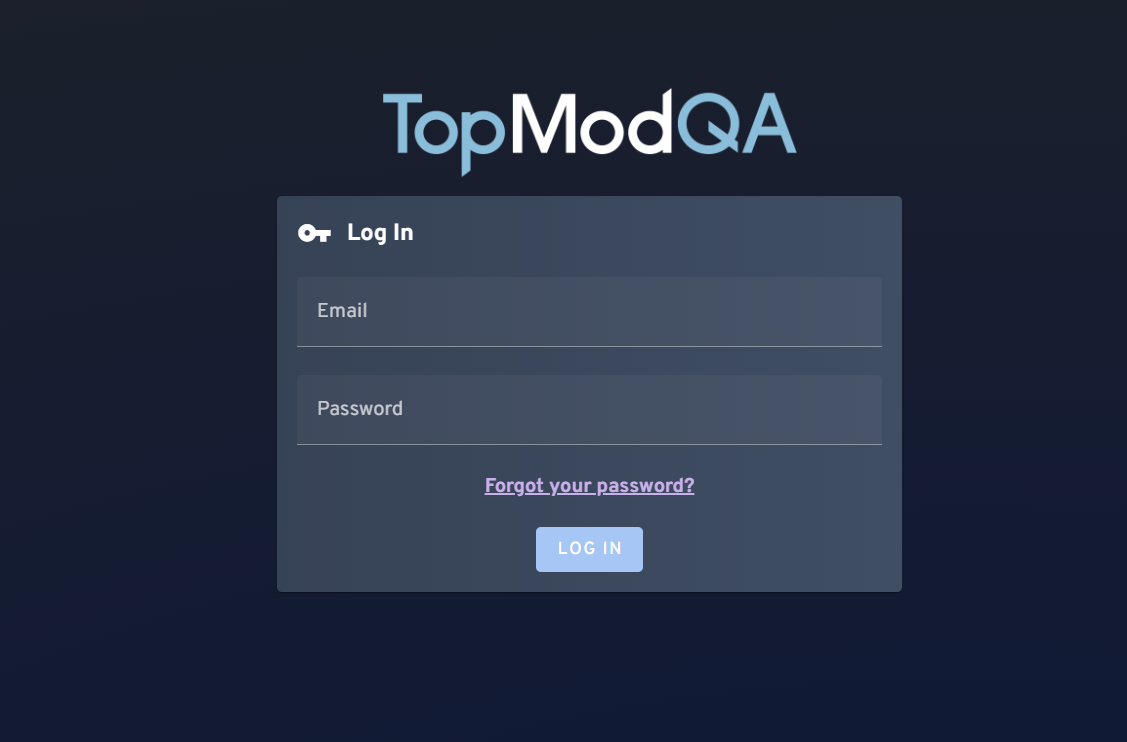
To login to TopMod QA, head to https://app.topmodqa.com/ and enter the login details provided to you previously. If you do not remember your password, click on the "Forgot Your Password?" link or click here: https://app.topmodqa.com/auth-management. Please note, you must have access to the email address associated to your account to receive the forgotten password email.
2. Finding a Session
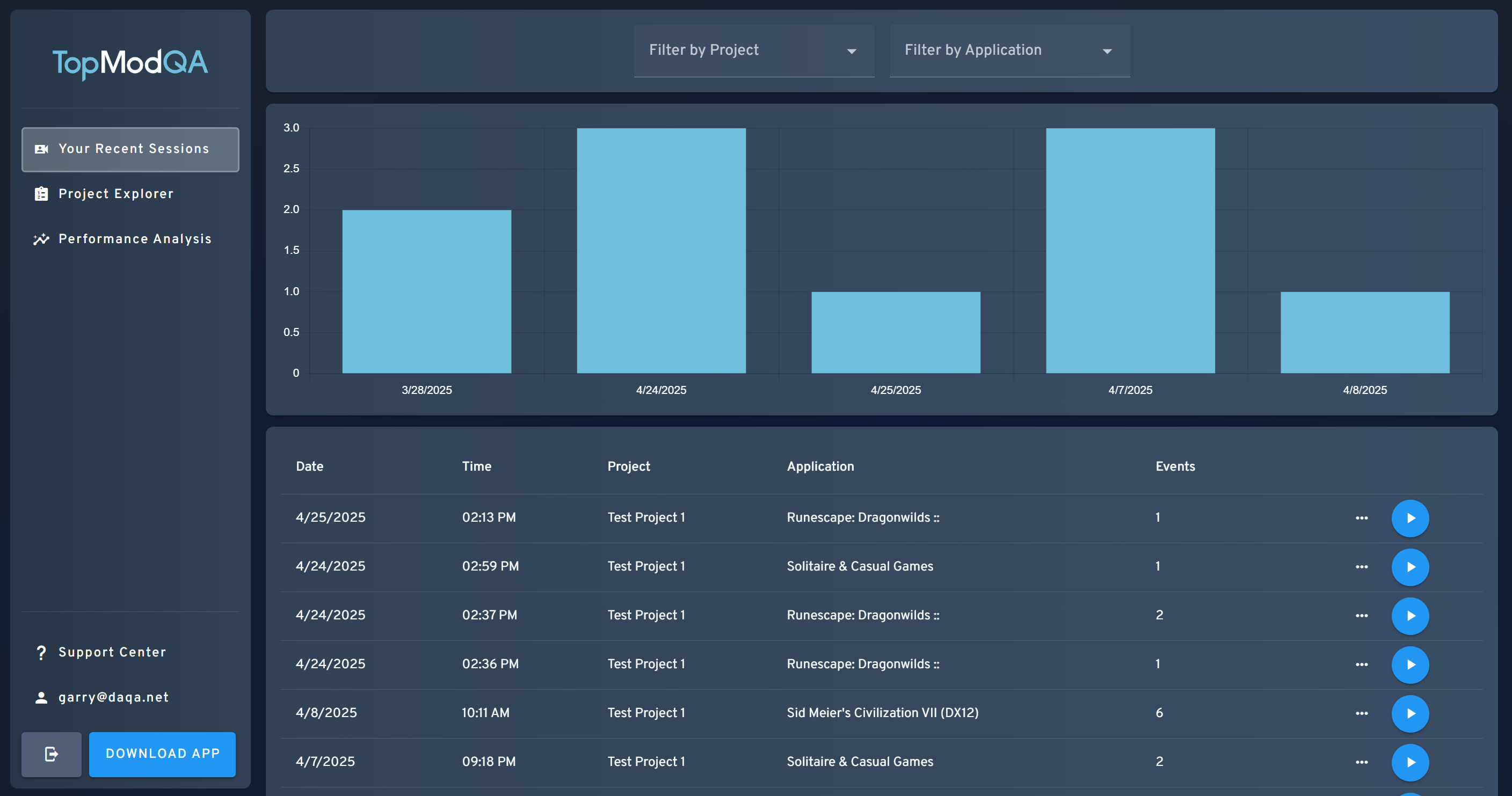
Once logged in, you'll be directed to "Your Recent Sessions" page. This page displays all of your uploaded Sessions, arranged chronologically with your most recent Session displayed at the top of the list. If you would like to find a Session associated to a specific Project or Application, you can do so using the dropdown menus at the top of the page.
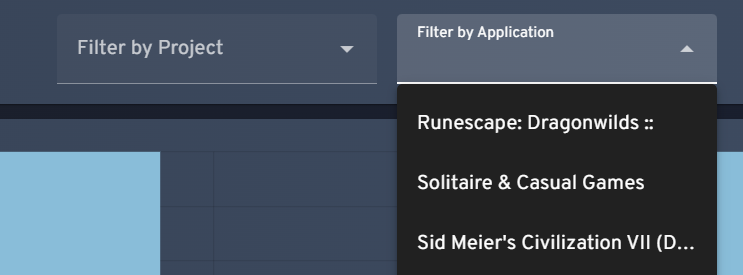
Once you have found the Session you'd like to view, click the blue circle with the play icon in to open the Session for further review.
If you are unfamiliar with how TopMod QA manages Sessions and Events within, we have created a short explainer video which can be found here: Introducing Sessions &... | TopMod QA Docs
3. Review a Session
Upon opening your selected Session, you'll be presented with our Session View page. This page includes some key information including:
- The Session information including the email of the tester who uploaded the Session, number of events and the amount of hours recorded in the session.
- The Performance averages across each event captured
- The Event Timeline
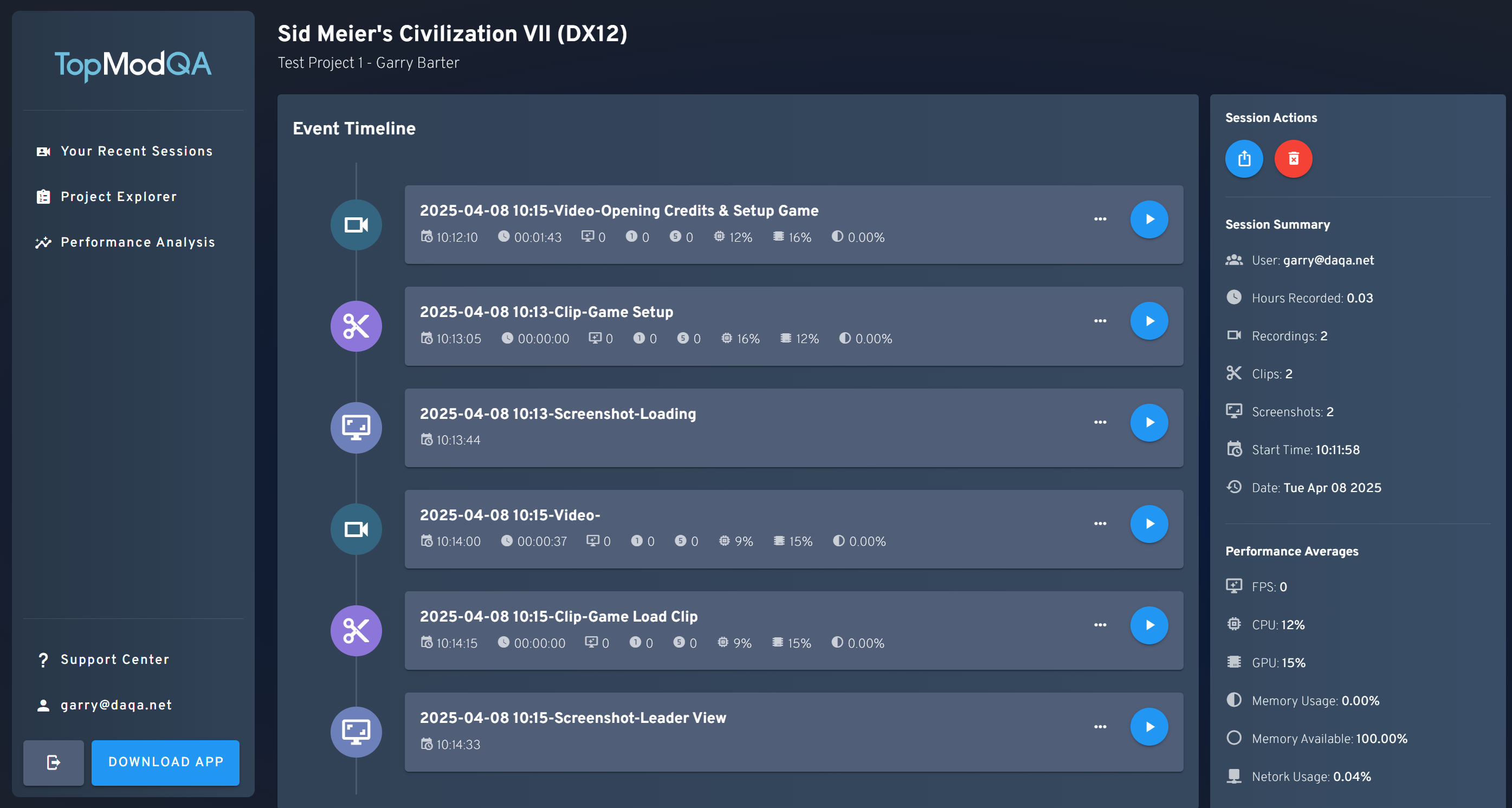
We're going to focus on the Event Timeline in this guide, which is the element in the middle of the page that shows the timeline of Events captured during the Session. Remember, an Event can be a clip or screenshot captured by the tester, or the full recording of the testers test session if they chose to upload that part of the Session. You can tell the type of Event displayed in the timeline by reviewing the icon displayed to the left of the cell. The icons displayed are:
- Camera - Full length recording
- Scissors - A clip the tester wanted to capture
- Screen - A screenshot of the game the tester wanted to upload
If the tester chose to include one, a description of the Event is included as the title for each Event captured. To view one of these Events, click the blue circle with the play icon displayed.
4. View an Event
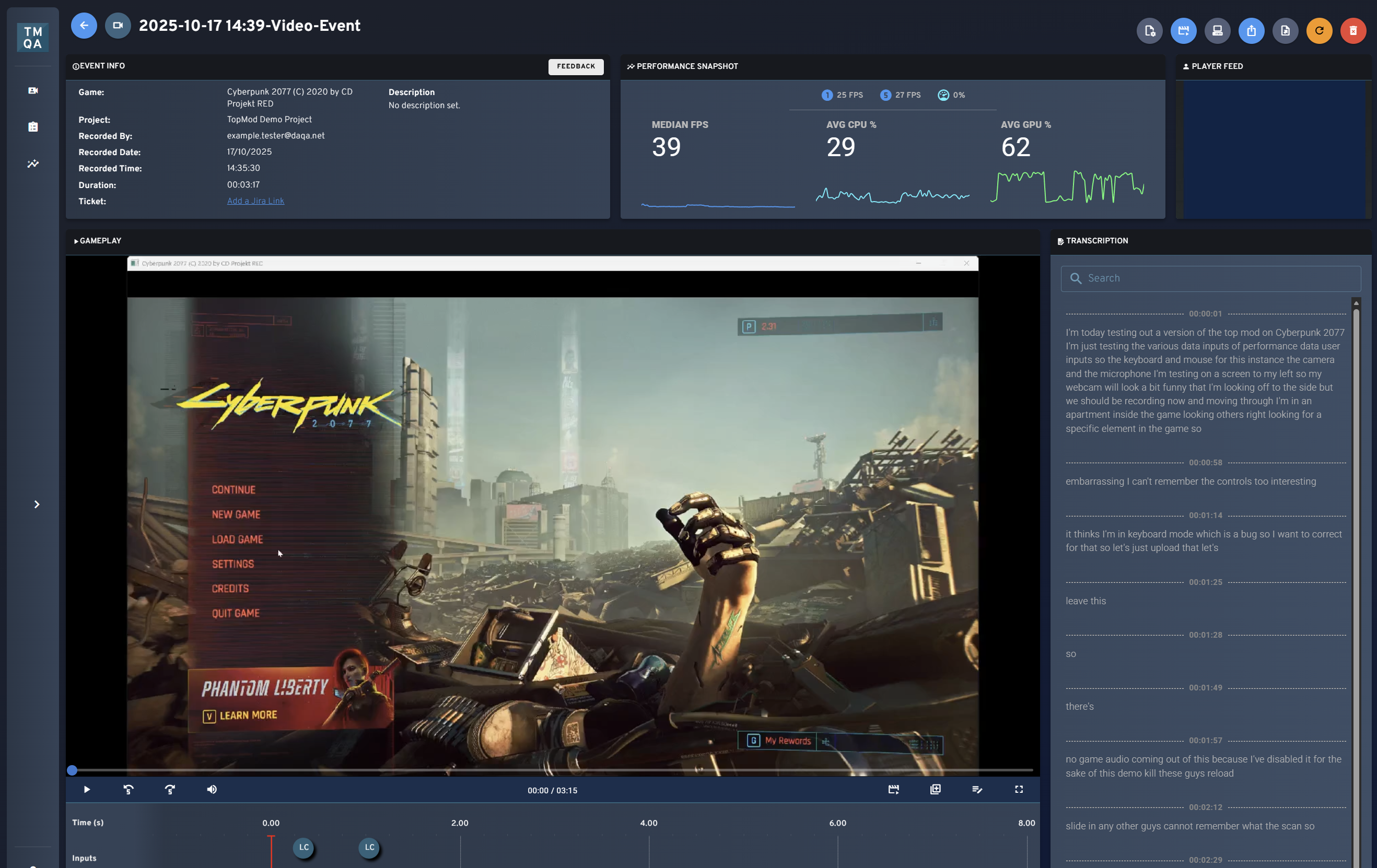
After opening a specific Event, you will be presented with the Event Viewer page. This page displays the content of the Event that was opened,captured alongsideincluding otherall key information such asof the Eventdifferent informationdata andpoints captured by the Performancenative datarecording for that Event.application.
For screenshots, you will be presented with the raw image captured as part of that Event, for Clips and Recordings, you'll be presented the video footage of the event.
TopModWhen QAviewing utilisesClips or Recordings, you'll be presented with various containers including:
- Your main video player - Containing the recorded gameplay footage from your capture. Also features buttons to add voice overlays or edit the layers of audio captured inside the video (great if you want to call something specific out in your bug clip!).
- Event Information - Contains all key meta information about your event and allows you to add a
processdescription,calledtag"VideotheComposites"type of event captured or link tooverlayankeyexternalinformationJiraonURL. - Performance Snapshot - As you play through the
capturedvideofootage.capture,Thisthisallowselementuswill update in real time to displayusertheinputs,key performance metrics captured by TopMod. - Player Feed - If you enabled webcam
footagecaptureandasperformancepartdataofforyour recording, you are able to see thespecific framefeed of thevideo you are viewingtester inonethisplace.container. - Transcription
image-aboveAshowsreada video composite being played in the middleout of thescreenautomatedandtranscriptionastakenyoufromcanthesee,testersincludesmicrophoneperformance(ifdataenabledandduringusercapture).inputs.ThisToalsoprovidecontainsthisthe ability to edit or skip to specific transcription items by hovering over the text. - Input Feed - Below the video
footage, any recording captured within the native applicationplayer isuploadedato our servers and this video is compiled. Depending on the lengthtimeline of thefootagetestersbeinginputsprocessed,asthistheycanplaytake some time. Whilst this process is underway,through therawgame.gameplayThisfootagedisplayswillbothbekeyboarddisplayed.andOncecontrollertheinputs. - Performance
hasDatafinished,Timelinesthe-page will show the composite video from there on in.
session allowing for easy analysis of any peaks or troughs.ShouldIf youwish to, you canscroll down thepagepage,toyouviewwillthefindPerformanceadatafulloverreaddurationout of thevideo recording. This allows you to identifyperformanceissuesdatawithincaptured from theEvent.
5. Sharing With Others
At any time, should you wish to share the Event or Session you are viewing with someone else, you can simply click the "Share Event/Session" button. This is always displayed as a blue circle with the share icon in it as seen below:
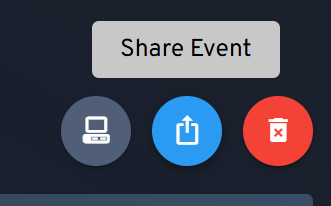

Please note - Any individual with this link can access the Event/Session, they do not require a TopMod QA login to access it so please be careful with sharing this. Any user with this link can access the linked Session but cannot access any other session due to the inclusion of a unique token tied specifically to the Session.
6. Finding Other Sessions In a Project
Once you are finished reviewing your selected Event, you may wish to review other Sessions from a Project. This is all possible within the TopMod QA dashboard. To start this process, select the "Project Explorer" from the left hand sidebar.
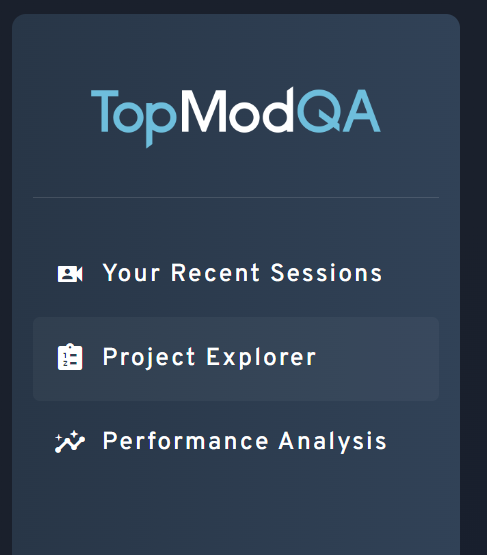
This will load the Project Explorer page which houses Sessions from all Projects you have access to. You'll be able to see different users contributing to the projects by reviewing the Session list and looking specifically at the "User" column.

As with the "Your Recent Sessions" page we saw previously, you can filter this list by Project, Application and User by using the filters at the top of the page. Selecting any value in here will update the Session List below the chart.

You can then select any Session you wish to review more by clicking on the blue circle button to open the Session View page for that specific session.
7. Exploring Performance Data
Finally, as all Sessions captured within TopMod QA can have Performance Data included as part of the recording, this can be mapped over time to allow you to find any specific issues with any game you are testing. To review this data, click on the "Performance Analysis" menu option in the left-hand sidebar.
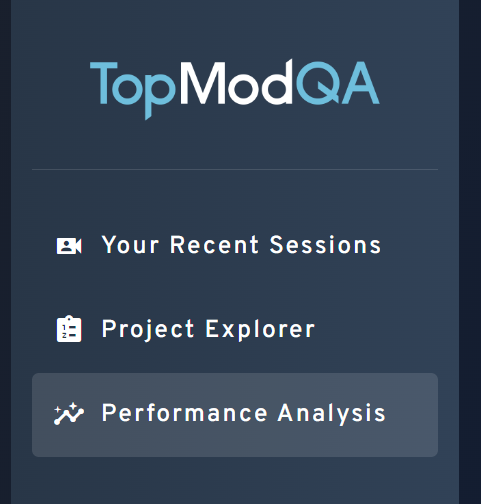
This will open the Performance Analysis page which displays all of the various pieces of data captured, mapped over time.
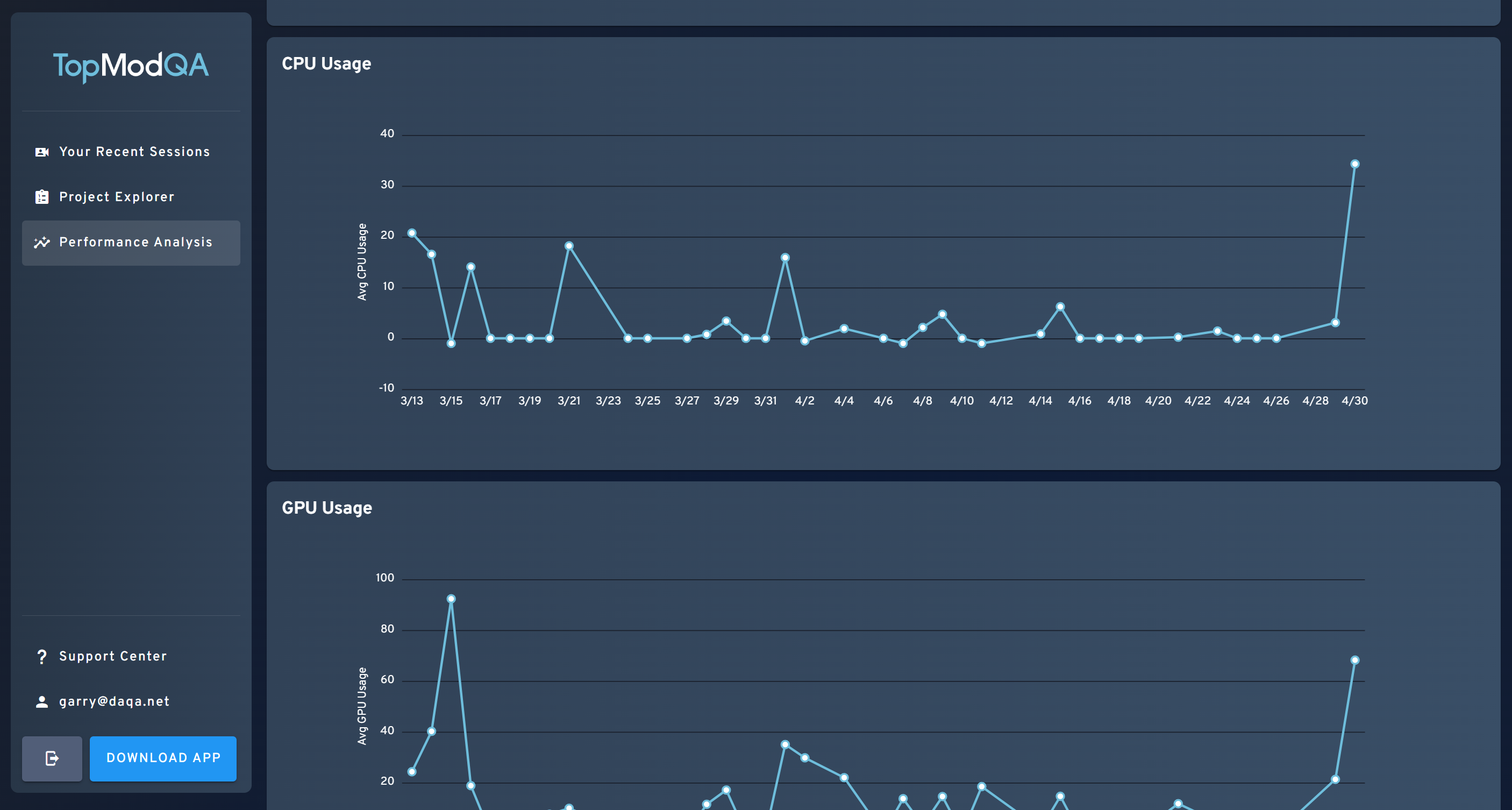
As with other pages in the dashboard, you can filter this using the filters at the top of the page and review the Sessions that match the selected filters in the Session list at the bottom of the page.
And that's it! That's all you need to do to start getting the most out of TopMod QA's new dashboard.
Additional Guides and Tutorials: