
First Time User Guide: Recording Application
As outlined in our latest release announcement, TopMod QA's version 2.2 release has overhauled the user journey and user interface of the recording application to make the process of capturing test footage easier than ever before.
This article provides you with a step-by-step guide to using the TopMod QA Recording App. For those that would prefer it, we have a video version of this guide below.
User Guide
1. Download Application
To download the latest version of the Recording Application, login to your TopMod QA account in the TopMod QA dashboard by visiting here: http://app.topmodqa.com/ and entering your login details. For more information on how to login to the dashboard, please read our First Time User Guide for the Dashboard.
After logging in, click the "Download App" button in the bottom left of the screen - as seen below.
1. Login
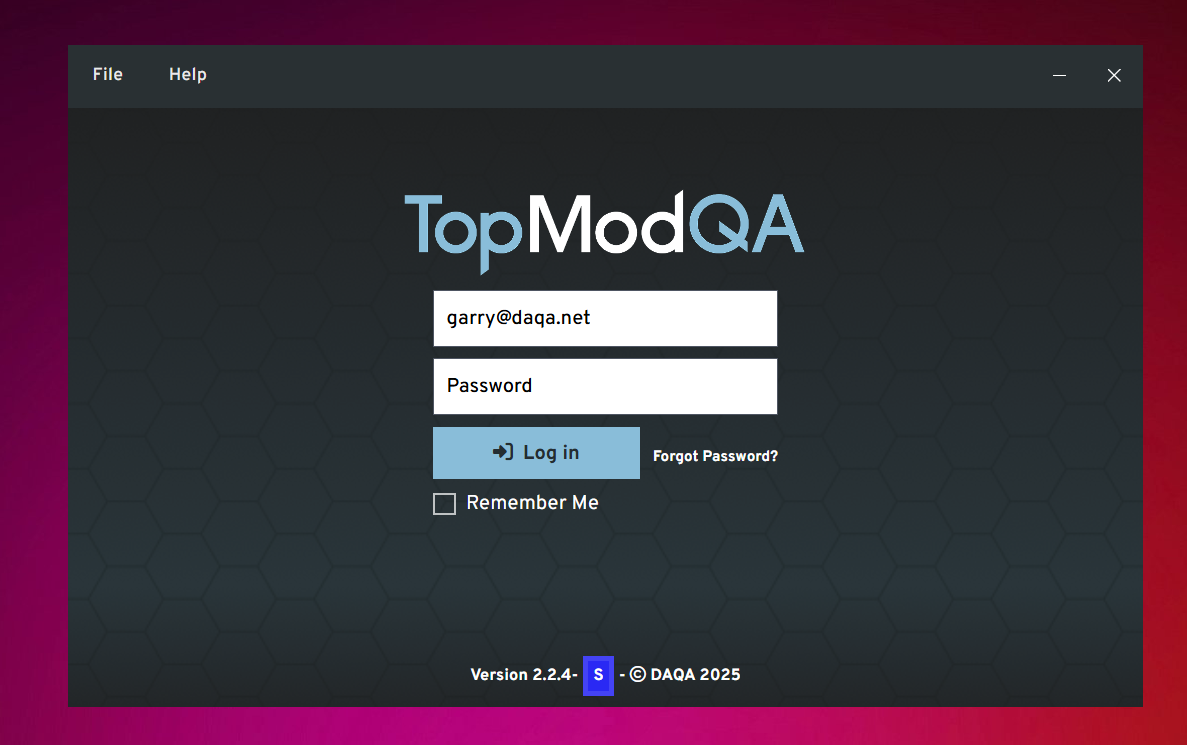
TextAfter heredownloa
2. Homepage
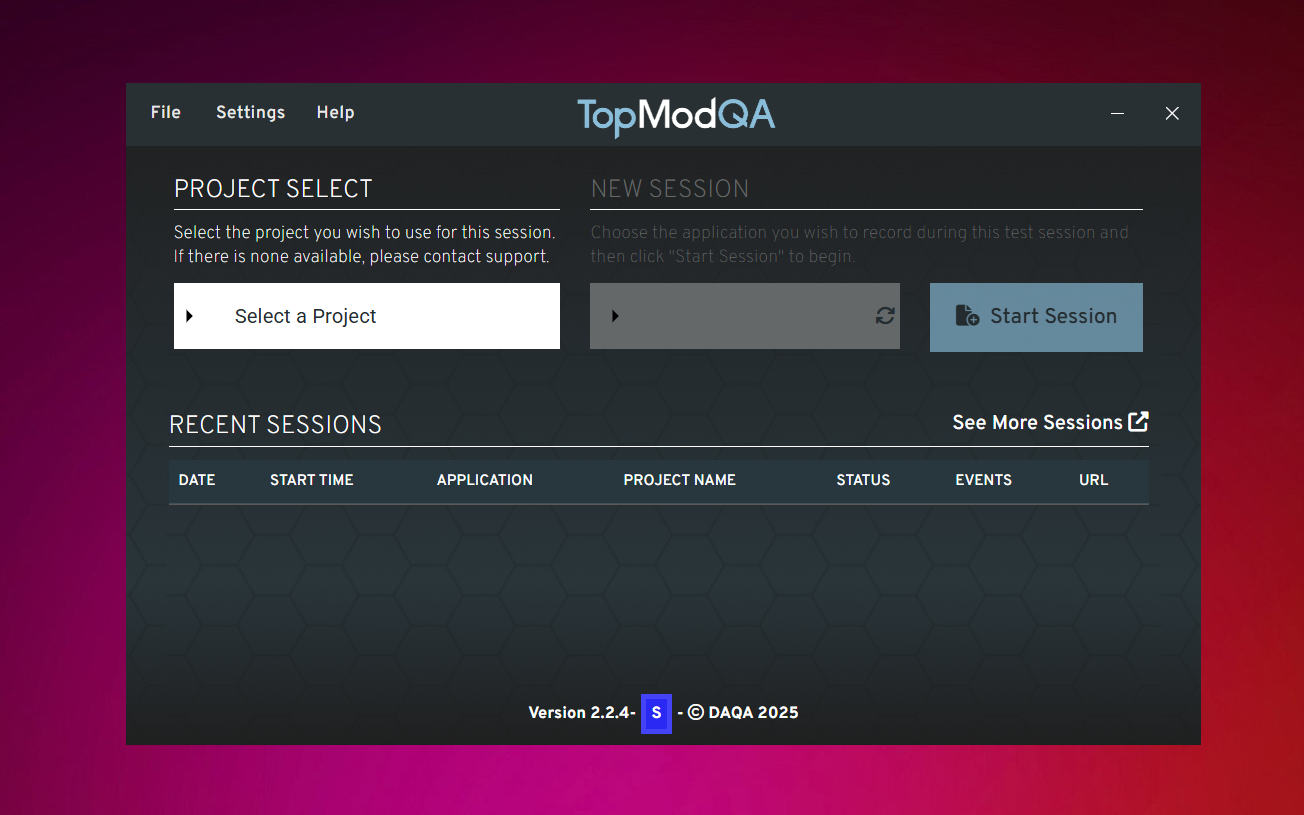
Text
3. Settings
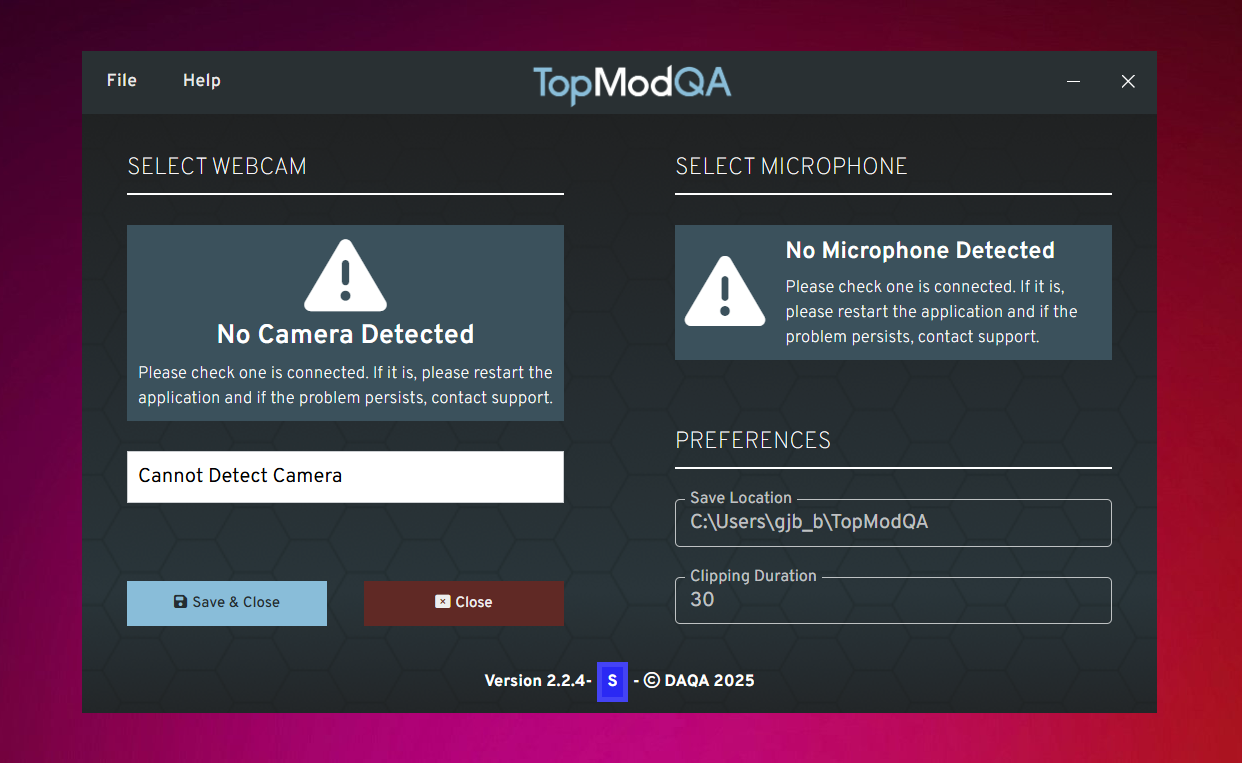
Text
4. Application Select
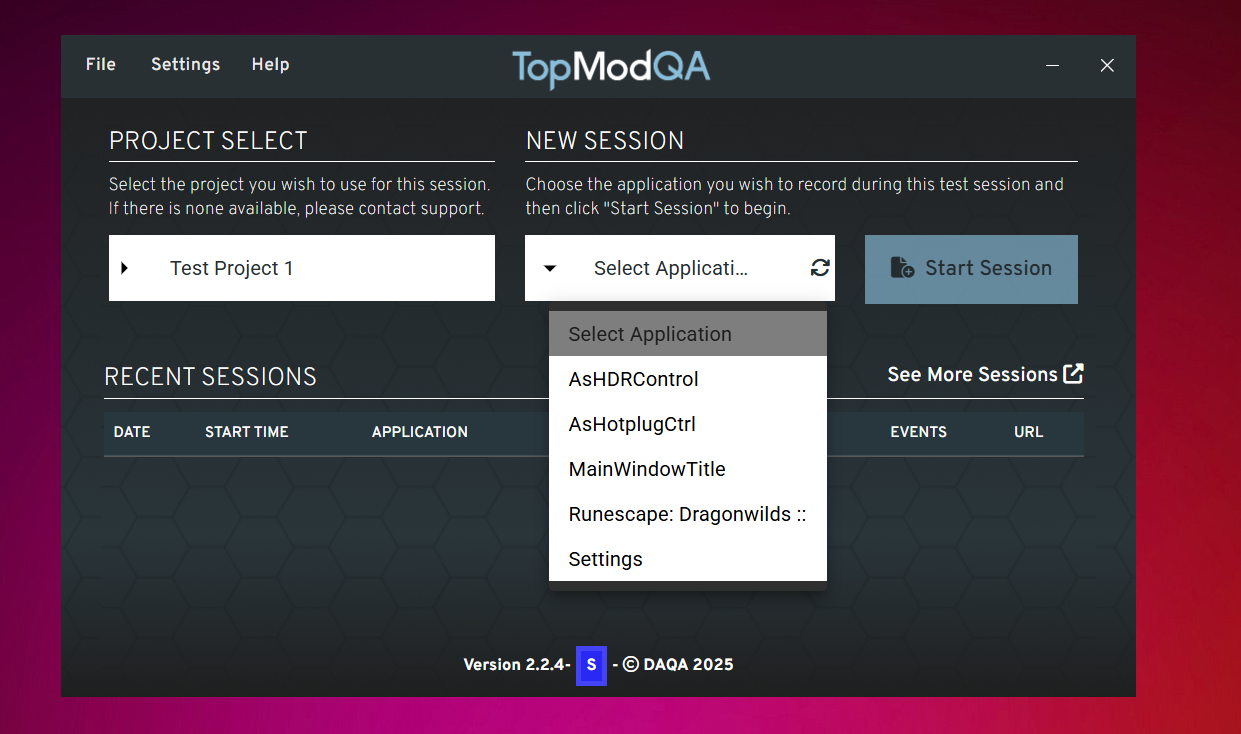
5. Start Session
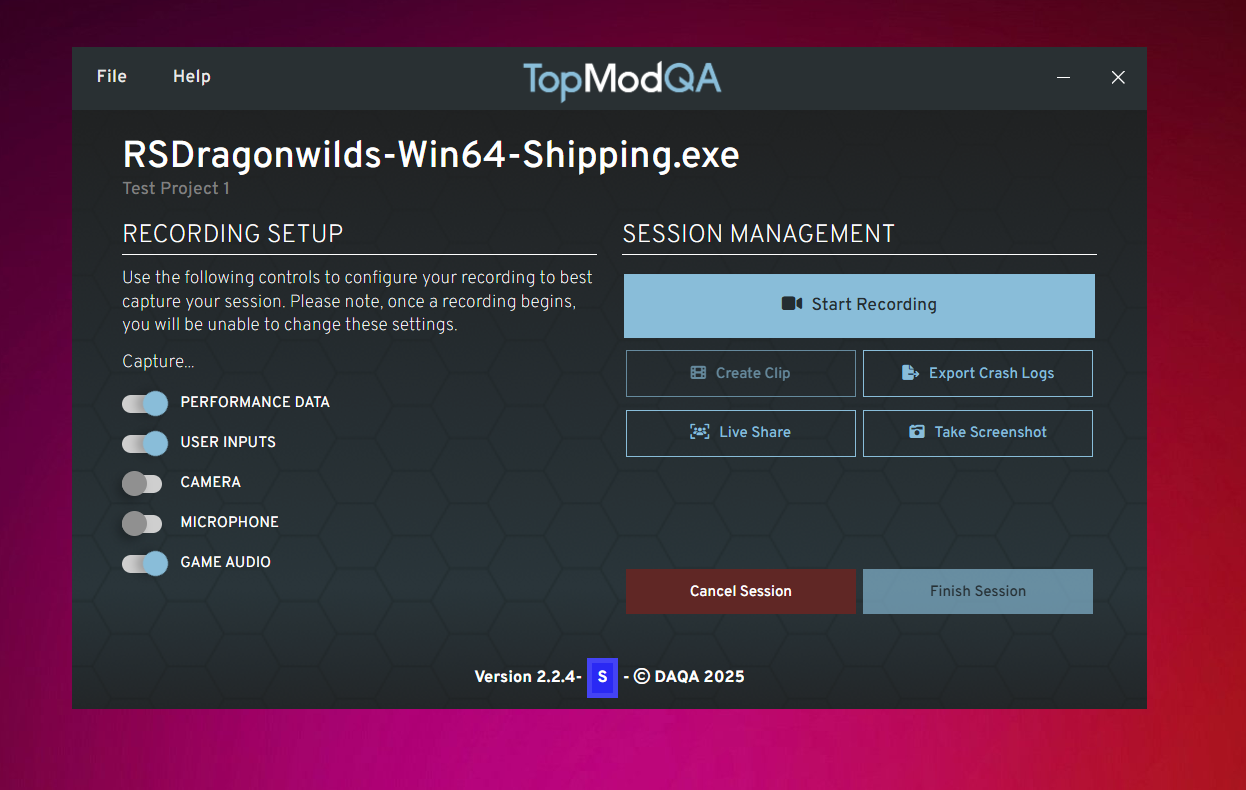
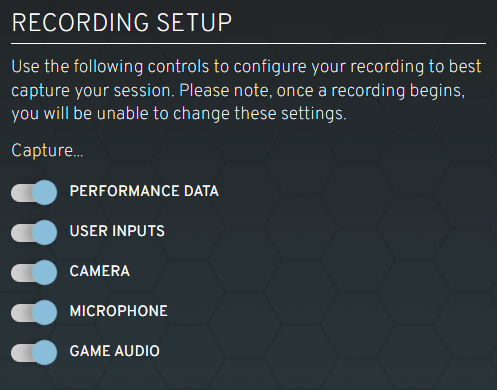
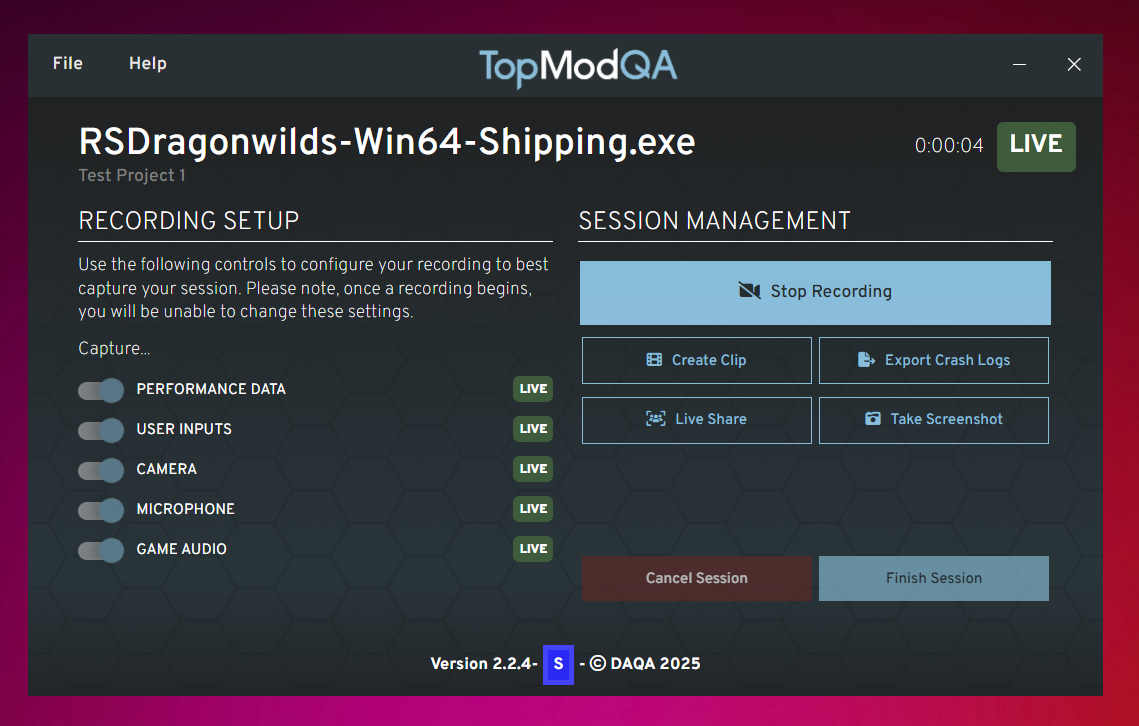
6. Recording Setup
7. Session Management
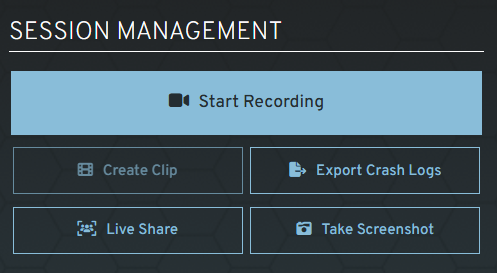
Export Crash Logs and Live Share in other article - Advanced Events
8. Capture Screenshot
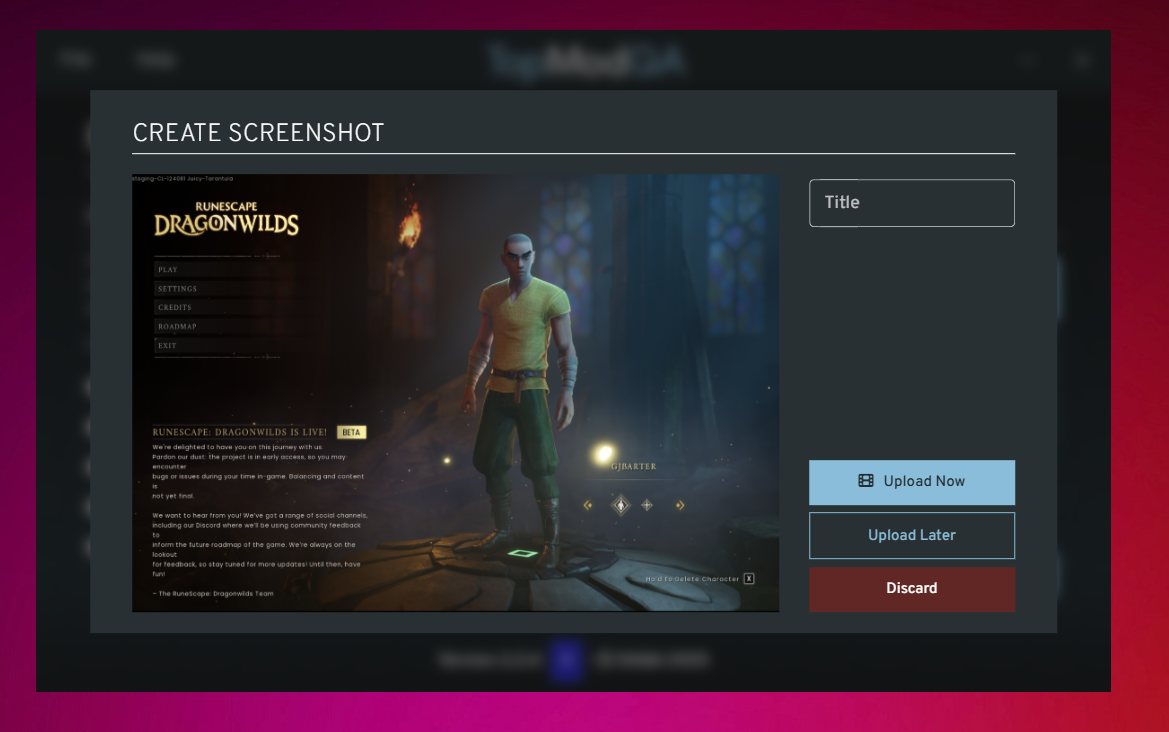
9. Start Recording
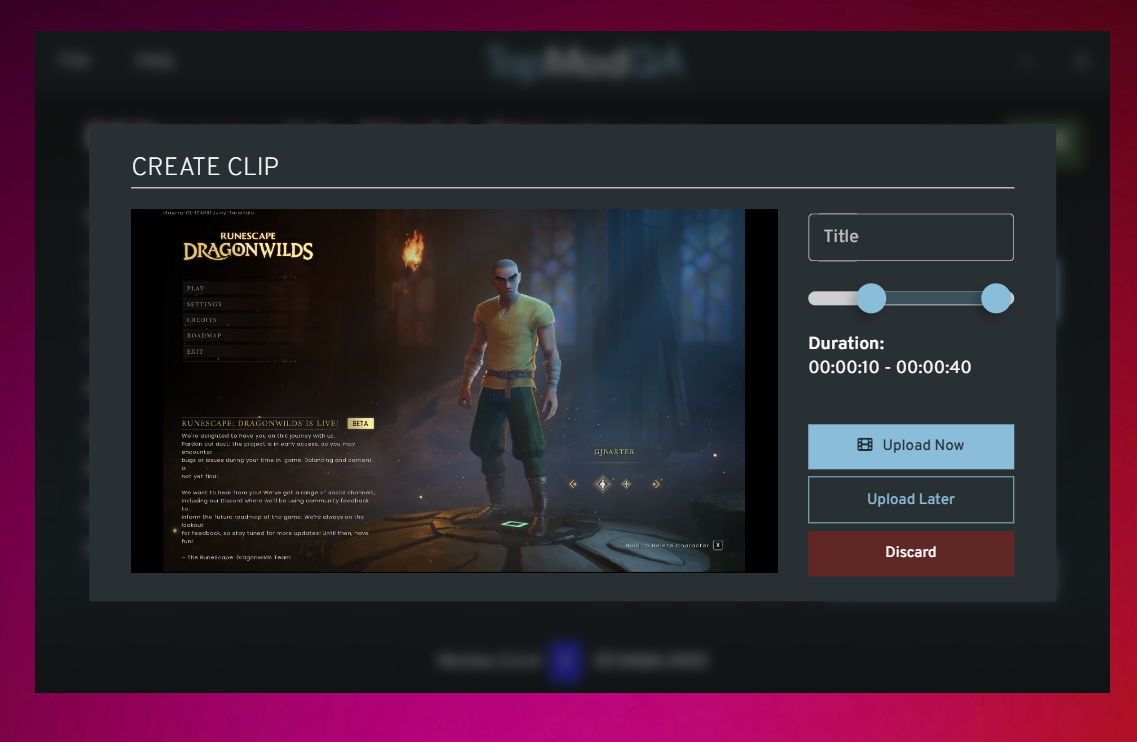
10. Create Clip
11. Finish Recording
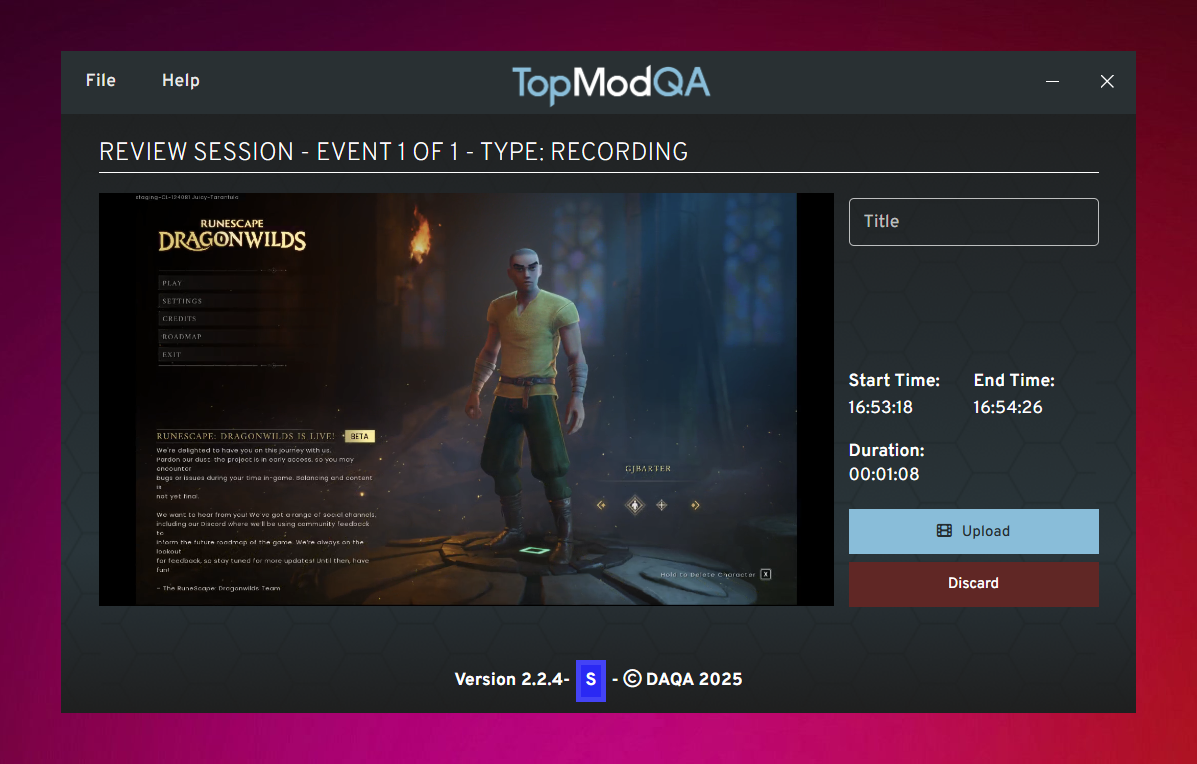
Cancel Recording
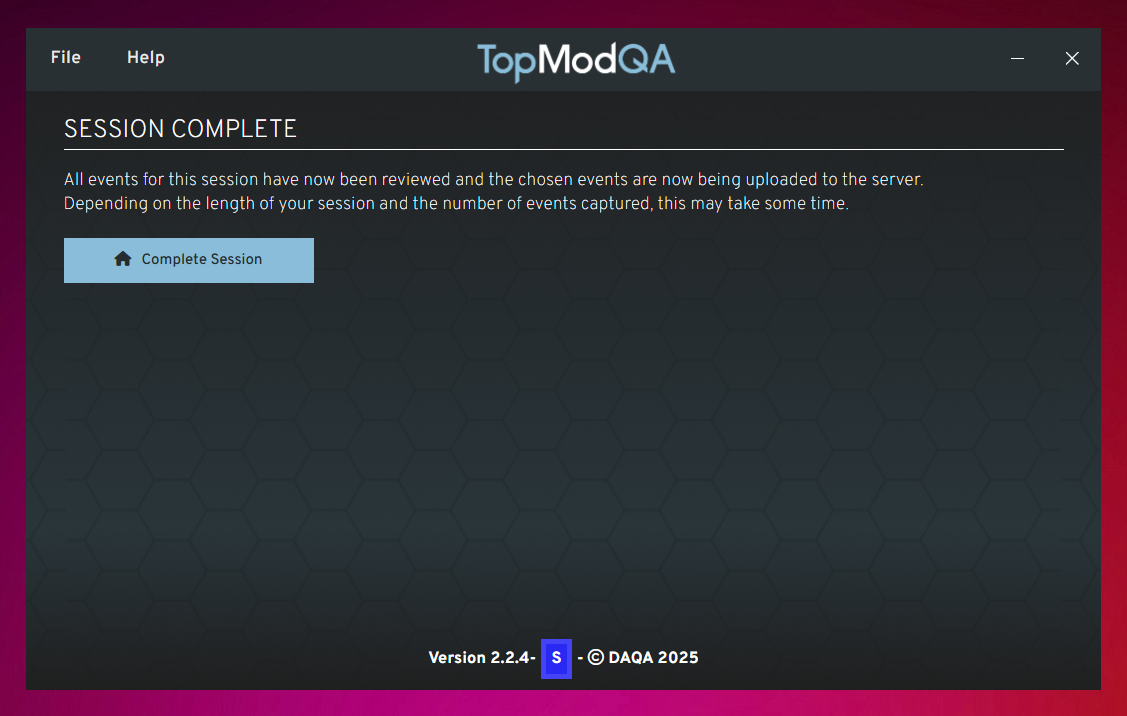
12. Session Complete
13. View Session
Link to Getting Started with Dashboard