
Why is the Recording application not able to find my game?
If you are trying to start a new Session within the Recording application and are encountering a warning (see below) that the "Application was not found", TopMod QA cannot connect to the game you are testing. This article provides our recommendations for how to fix this.
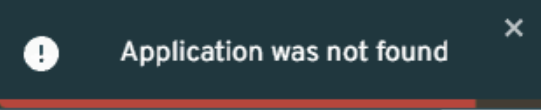
1) Ensure target game is running
Check that the game you are trying to record is still running and hasn't encountered any issues that may lead to the game being closed.
2) Check selected game is correct
As TopMod QA connects to the target game using it's window name, please ensure the game you have selected in your dropdown menu is correct. Please note - if the game uses a launcher window, please wait to start the Session until the full game window has loaded.
3) Restart TopMod QA
If you are still encountering the issue, please restart the TopMod QA recording application to ensure the user configuration file has been setup.
4) Delete TopMod QA Configuration file
If after restarting the application, you are still seeing this error, you will need to delete the TopMod QA configuration file by going to your AppData folder (steps below) and deleting the configuration file. To find & delete your configuration file, please complete the following steps:
5) Reinstall recording application & restart host PC
If you continue to encounter issues, please reinstall TopMod QA's recording application and restart your PC.
If none of the above solve the problem, please contact support by emailing support@topmodqa.com