Linux
This section covers the deployment of the TopMod backend system on a Linux-based server.
Requirements
Hardware Requirements
- 8GB RAM
- 4 Core/8 Thread AMD64 based processor
- 500GB available storage
Software Requirements
TopMod QA's server-side infrastructure relies on Docker and Docker Compose, as well as an Nginx reverse proxy paired with LetsEncrypt SSL generation.
The easiest way to ensure that the Docker requirements are met is by using the docker convenience script:
curl -fsSL https://get.docker.com -o get-docker.shsudo sh ./get-docker.sh --dry-runTo install Nginx, run the following:
sudo apt update
sudo apt install nginx
To install LetsEncrypt's certbot, run the following:
sudo apt install snapd
snap install core; snap refresh core
snap install --classic certbot
The following ports must be available on the server (not in use), :
- 443 (TCP/UDP) - Exposed
- 3000 (TCP/UDP)
- 3478 (TCP/UDP) - Exposed
- 5349 (TCP/UDP) - Exposed
- 17769 (TCP/UDP)
- 21338 (TCP/UDP)
- 32770 (TCP/UDP) - Exposed
Ensure that your A records are pointing to the server and that DNS requests are resolving correctly. You will need two of them, one for the Collaboration system, and the second for the TopMod QA backend itself.
Sharepoint Setup
In order to connect to Sharepoint, the backend must be registered by following the instructions located at: https://learn.microsoft.com/en-us/entra/identity-platform/quickstart-register-app?tabs=certificate
Once the app registration is complete, follow these instructions to generate a self-signed certificate which will then be added to your Sharepoint App registration: https://learn.microsoft.com/en-us/entra/identity-platform/howto-create-self-signed-certificate
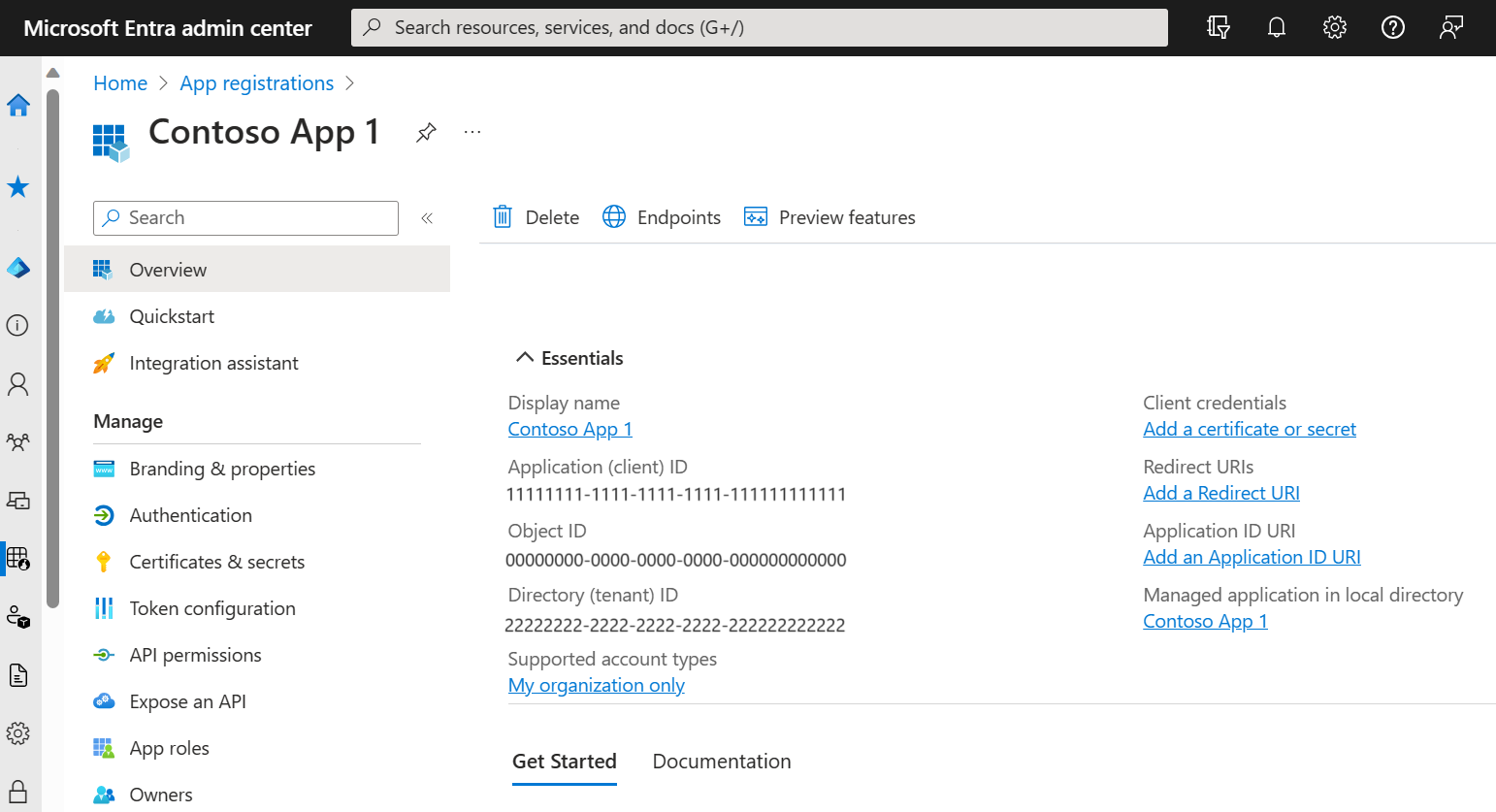
On the right hand side of the registration overview, you can add the certificate. Once this is done, go to the API Permissions menu on the left and add the following permissions:
| Permission Group | Permission Type | Permission |
| Sharepoint | Application | Sites.FullControl.All |
| Microsoft Graph | Delegated | User.Read |
Preparations
Please ensure that you have the following information to hand before continuing with the setup:
- TopMod QA License ID (Provided by DAQA)
- TopMod QA Client ID (Provided by DAQA)
- TopMod QA Deployment Binary (Provided by DAQA)
- Desired TopMod QA backend URL (FQDN)
- Desired TopMod QA collaboration URL (FQDN)
- Sharepoint site URL (ie., https://ORG.sharepoint.com:443/sites/SITENAME)
- Sharepoint tenantId (32bit UUID)
- Sharepoint clientId (32bit UUID)
- Sharepoint secret
- Sharepoint certificate & certificate key/password
- SMTP server details (Credentials, Host, Port)
Deployment
Available Arguments
The TopMod QA deployment binary has several arguments available:
| help | Prints the help message and outlines the same information as available in this section. |
| auth | Prompts the user for client and license IDs in order to download and validate the license key from DAQA servers. |
| setup | Prompts the user for multiple pieces of information for the setup including sharepoint and smtp details. This option generates all of the necessary docker-compose scripts to run the system, as well as logs the user into DAQA's docker registry. |
| nginx | Sets up the appropriate host files in Nginx and requests LetsEncrypt SSL certificates. |
| run | Pulls and runs each of the containers in order. |
| stop | Stops all running containers. |
General Usage
To begin, run the deployment binary with the "auth" argument to get the necessary License.key file. This is required before the user can run the "setup" argument.
The output of the "auth" argument will look something like this upon completion:
user@debian:~$ sudo ./deployment auth

       Welcome to...

 🚀 DAQA's TopMod QA Deployment
▔▔▔▔▔▔▔▔▔▔▔▔▔▔▔▔▔▔▔▔▔▔▔▔▔▔▔▔▔

Let's get started...

🔑  Authentication
 ├─[🔑 ] Enter your client ID: exampleClientId
 └─[🔑 ] Enter your license ID: exampleLicenseId

 License Validated.
 Limits
 └─[Users] 50
 └─[Expiry] 2099-01-01 12:00:00
Once the License.key file is downloaded and validated, the "setup" argument can be run. Once again the user will be asked a series of questions, this time in order to dynamically generate docker-compose.yml files and the appropriate folder structure.
The "setup" argument will also save a file labelled "backup" in the current directory. This can be piped back into the deployment binary if the system needs to be redeployed or if the user has encountered an error. To do this, simply run:
sudo ./deployment setup < backupAfter providing the required information, the user will be logged in to the DAQA docker repository automatically.
Next, use the "nginx" argument to setup the two hosts and their SSL certificates. Once this step completes, the "run" argument may now be used to start all of the containers.