# Frequently Asked Questions
# Why can't I see my Session in the Dashboard?
If you’re unable to find a Session you recorded in the TopMod QA Dashboard, this guide will walk you through the possible causes and how to resolve them.
#### I recorded a Session, but it hasn’t appeared in the Dashboard
To ensure your Session appears correctly, please follow these steps:
**1. Check your internet connection**
TopMod QA requires an active internet connection to create a Session in the Dashboard as soon as you start recording. Make sure your connection is stable and functioning during the session.
**2. Don’t discard Sessions you want to keep**
The “Discard Session” button permanently cancels the Session. To save your recording, always click **“Complete Session”** at the end.
> ⚠️ *If you accidentally discard a session you intended to keep, please contact support@topmodqa.com. We will do our best to recover it.*
#### I can no longer access a Session in the Dashboard
If a Session that was previously visible is no longer accessible, consider the following:
**1. Confirm you’re using the correct version of the application**
If you've participated in testing beta versions of TopMod QA, you may have used a non-production environment. Beta versions are separate from the live system, and Sessions recorded there won’t appear in the standard Dashboard.
To verify you're on the correct version:
- Open the application and check the footer.
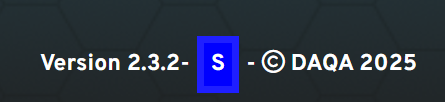
- If you see a **blue square with an “S”**, you're using a staging or test version (see below for an example). Please switch to the production version of TopMod QA.
[](https://docs.topmod.daqa.net/uploads/images/gallery/2025-05/cpqimage.png)
**2. Check if the Session was deleted by another user**
Project leads and managers have permission to delete Sessions. If a Session is missing, confirm with your team whether it was intentionally removed.
> 🛠 *If a session was deleted in error, reach out to support@topmodqa.com and we will attempt to recover it.*
**Still having trouble?**
If you continue to experience issues, please contact our support team at support@topmodqa.com.
# Why is my video capture stuttering?
If you notice stuttering in your recorded gameplay—whether during playback of a **Clip** or **Recording**, or after uploading the session and viewing it in the **Dashboard**—it’s likely due to system resource or hardware configuration issues. This article provides guidance on how to resolve the problem.
#### 1. High CPU usage during gameplay
If the game you’re testing is using more than 95% of your system’s CPU, this may cause recording stutter due to resource constraints.
**Recommended actions:**
- Close all non-essential applications and background processes to free up system resources.
- Restart your PC and try recording the session again.
#### 2. Multi-monitor setup with mismatched refresh rates
Using multiple monitors with different refresh rates can interfere with screen capture tools, including TopMod QA.
**Recommended actions:**
- Make sure all connected monitors are set to the **same refresh rate**.
- You can follow this [Microsoft guide](https://support.microsoft.com/en-us/windows/change-the-refresh-rate-on-your-monitor-in-windows-c8ea729e-0678-015c-c415-f806f04aae5a) for instructions on how to adjust your monitor's refresh rate.
**Still having trouble?**
If you continue to experience issues, please contact our support team at support@topmodqa.com.
# Why is the Recording application not able to find my game?
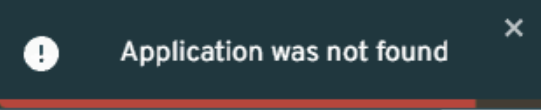
If you're trying to start a new session in the TopMod QA Recording application and see a warning stating **"Application was not found"**, it means the application cannot detect or connect to the game you're testing. Below are our recommended troubleshooting steps:
##### 1) Ensure target game is running
Verify that the game you're trying to record is currently active and hasn’t crashed or closed unexpectedly.
##### 2) Check selected game is correct
TopMod QA identifies the game using its window title. Please make sure you’ve selected the correct game from the dropdown menu in the Recording application.
> **Note:** If your game launches via a launcher window, wait until the full game window has loaded before starting a new session.
##### 3) Restart TopMod QA
If the issue persists, restart the Recording application to ensure your user configuration has been initialized correctly.
##### 4) Delete TopMod QA Configuration file
If restarting doesn’t resolve the issue, you may need to manually delete the TopMod QA configuration file. Follow these steps:
1. Open the **Start** menu and launch the **Run** dialog (Windows + R).
2. Type `%appdata%` and click **OK**. This will open the **Roaming** AppData folder in File Explorer.
3. Navigate to the root AppData folder by clicking on `AppData` in the address bar. The full path should look like:
C:\\Users\\\[YourUsername\]\\AppDat
4. Open the `Local` folder, then the `topmod` folder.
5. Delete the file named `config.pb`.
6. Restart the TopMod QA Recording application.
##### 5) Reinstall recording application & restart host PC
If none of the above steps work, reinstall the Recording application and restart your computer.
**Still having trouble?**
If you continue to experience issues, please contact our support team at support@topmodqa.com.