Frequently Asked Questions
- Why can't I see my Session in the Dashboard?
- Why is my video capture stuttering?
- Why is the Recording application not able to find my game?
Why can't I see my Session in the Dashboard?
If you’re unable to find a Session you recorded in the TopMod QA Dashboard, this guide will walk you through the possible causes and how to resolve them.
I recorded a Session, but it hasn’t appeared in the Dashboard
To ensure your Session appears correctly, please follow these steps:
1. Check your internet connection
TopMod QA requires an active internet connection to create a Session in the Dashboard as soon as you start recording. Make sure your connection is stable and functioning during the session.
2. Don’t discard Sessions you want to keep
The “Discard Session” button permanently cancels the Session. To save your recording, always click “Complete Session” at the end.
⚠️ If you accidentally discard a session you intended to keep, please contact support@topmodqa.com. We will do our best to recover it.
I can no longer access a Session in the Dashboard
If a Session that was previously visible is no longer accessible, consider the following:
1. Confirm you’re using the correct version of the application
If you've participated in testing beta versions of TopMod QA, you may have used a non-production environment. Beta versions are separate from the live system, and Sessions recorded there won’t appear in the standard Dashboard.
To verify you're on the correct version:
-
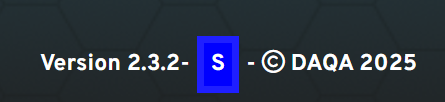
Open the application and check the footer.
-
If you see a blue square with an “S”, you're using a staging or test version (see below for an example). Please switch to the production version of TopMod QA.
2. Check if the Session was deleted by another user
Project leads and managers have permission to delete Sessions. If a Session is missing, confirm with your team whether it was intentionally removed.
🛠 If a session was deleted in error, reach out to support@topmodqa.com and we will attempt to recover it.
Still having trouble?
If you continue to experience issues, please contact our support team at support@topmodqa.com.
Why is my video capture stuttering?
If you notice stuttering in your recorded gameplay—whether during playback of a Clip or Recording, or after uploading the session and viewing it in the Dashboard—it’s likely due to system resource or hardware configuration issues. This article provides guidance on how to resolve the problem.
1. High CPU usage during gameplay
If the game you’re testing is using more than 95% of your system’s CPU, this may cause recording stutter due to resource constraints.
Recommended actions:
-
Close all non-essential applications and background processes to free up system resources.
-
Restart your PC and try recording the session again.
2. Multi-monitor setup with mismatched refresh rates
Using multiple monitors with different refresh rates can interfere with screen capture tools, including TopMod QA.
Recommended actions:
-
Make sure all connected monitors are set to the same refresh rate.
-
You can follow this Microsoft guide for instructions on how to adjust your monitor's refresh rate.
Still having trouble?
If you continue to experience issues, please contact our support team at support@topmodqa.com.
Why is the Recording application not able to find my game?
If you're trying to start a new session in the TopMod QA Recording application and see a warning stating "Application was not found", it means the application cannot detect or connect to the game you're testing. Below are our recommended troubleshooting steps:

1) Ensure target game is running
Verify that the game you're trying to record is currently active and hasn’t crashed or closed unexpectedly.
2) Check selected game is correct
TopMod QA identifies the game using its window title. Please make sure you’ve selected the correct game from the dropdown menu in the Recording application.
Note: If your game launches via a launcher window, wait until the full game window has loaded before starting a new session.
3) Restart TopMod QA
If the issue persists, restart the Recording application to ensure your user configuration has been initialized correctly.
4) Delete TopMod QA Configuration file
If restarting doesn’t resolve the issue, you may need to manually delete the TopMod QA configuration file. Follow these steps:
5) Reinstall recording application & restart host PC
If none of the above steps work, reinstall the Recording application and restart your computer.
Still having trouble?
If you continue to experience issues, please contact our support team at support@topmodqa.com.